
In Hiberden, a copy is not something you create by hand. It is the result of three things lining up: a destination that exists, a policy that binds that destination as a required copy, and an archive written under that policy. This article walks that chain from start to finish.
Step 1: Add a destination
Destinations live in a shared pool. You set one up once, and any project's policy can bind to it.
The Add-destination dropdown offers four kinds:
- Local folder: a write path on a local drive, for example
D:\Archives. See Local Disk and NAS. - NAS: any network share Windows can reach, as a UNC path (
\\nas\archives) or a mapped drive. - Cloud (S3): an S3-compatible bucket in your own account. You supply the endpoint, region, bucket, storage class, and access keys; the keys are stored in the OS keyring, never in the catalog. Storage class defaults to STANDARD and takes any class that can be read back right away (the app suggests STANDARD, STANDARD_IA, ONEZONE_IA, INTELLIGENT_TIERING, and GLACIER_IR); verification reads the stored archive back immediately after write, so GLACIER and DEEP_ARCHIVE are refused when you save. See Cloud (S3-Compatible).
- Tape (LTO): binds to the connected tape drive, so there is no path to enter. Archives are written to the connected tape drive. See Tape (LTO-9 / LTFS).
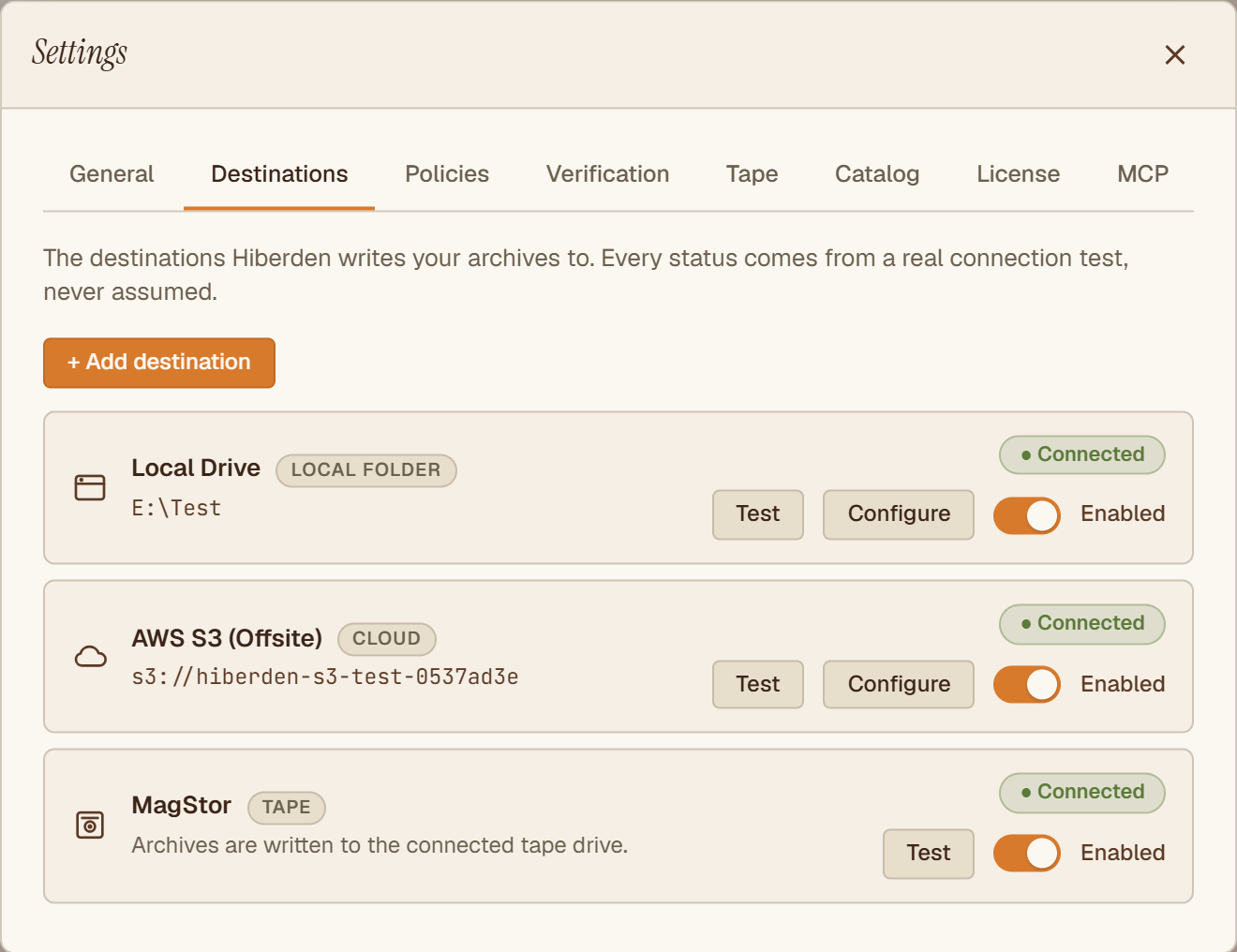
Step 2: Save & test runs a real probe
When you press Save & test, Hiberden actually exercises the destination. Nothing is assumed:
- Cloud (S3) performs a real bucket check against your endpoint with your credentials.
- Local folder and NAS write a small marker file to the path, read it back, and delete it. If the share is unreachable or read-only, the test fails here instead of during your first archive.
- Tape (LTO) requires a drive that is present and mountable.
Each destination shows a status badge: Testing… while the probe runs, then ● Connected or ● Connection failed. A destination you have not probed yet shows Not tested, and one missing required fields shows Not configured. The test is there to surface problems early, before your first archive depends on the destination; it is not a gate, and a policy can bind a destination whose badge still reads Not tested.
If the tape test fails with no drive on the system, the message is: "No tape drive detected. Turn on the virtual tape drive (or connect an LTO drive)." The virtual tape drive lets you exercise the whole tape workflow with no hardware attached.
A destination that exists is not yet protecting anything. That is the next step.
Step 3: Assign a policy and bind the destination into it
Protection is defined by the project's policy. Each binding in the policy points at one destination and means: every archive in this project must have a verified copy there. The number of destinations bound is how many times the policy stores each archive.
A new project starts without a policy, and until one is assigned its archives show a "Needs setup" badge. Under Settings > Policies, create a policy if the project does not have one yet (the one-click starter policies are created without bindings, ready for this step) and assign it to the project. Then add the destination as a binding and save. Bindings are add-only in the editor: adding one only increases protection. To require fewer copies, create a new policy and assign it to the project instead. See Policies and Required Copies.
Step 4: Archive, and the copy exists
From now on, every archive added to that project is written to every bound destination in one operation, with each copy tracked separately. After writing each copy, Hiberden reads that copy back from its medium and re-hashes it against the recorded SHA-256 before it counts as Verified. Only then does it contribute to the archive's coverage badge, such as "Covered 2/2".
If you bind a new destination into a policy that already has archives behind it, those archives now require a copy they do not yet have, so their badges show "At risk" with the fraction of verified copies until every bound destination holds a verified copy. See Reading coverage status.