
When you buy Hiberden, your license key arrives by email at the address you used at purchase. It looks like this:
HIBA-XXXX-XXXX-XXXX-XXXX
If the email has not arrived, check your spam folder first. If it is genuinely lost, write to support@hiberden.app and support will resend it to the purchase address.
Enter the key
- Open Settings > License.
- Paste the key into the key field.
- Click Activate.
Activation makes one online call to Hiberden's server, so your machine needs an internet connection for this single step. The computer being activated does not even need its own connection: an offline computer activates with a USB stick and any other computer that is online, see Activate a computer that is offline. Either way, activation is the only kind of step that needs a connection; day-to-day use never does.
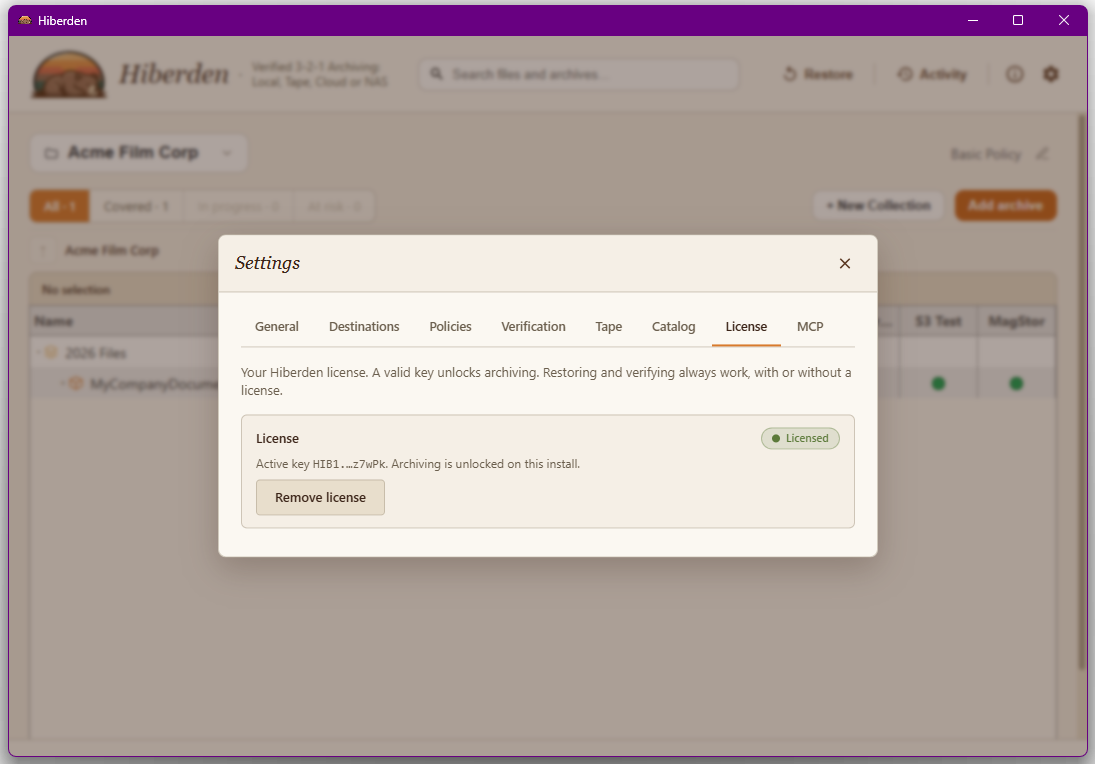
When activation succeeds, the License tab shows your license as active:
One call, then offline forever
Activation and the start of the trial are the only moments when Hiberden talks to a server about your license. Starting the trial sends the email you entered, an identifier for this computer, the app version, and which operating system you are on; the trial starts whether or not that call gets through. Activation sends your key, the same identifier, and the app version. The server returns a signed token that is stored in the operating system's keyring, and from then on the app verifies your license locally. There is no phone-home, no periodic check, and no expiry. You can run Hiberden on a machine that never touches the internet again. If you ever reactivate after removing the license, the app simply repeats the same one-time call.
Each license activates on one machine at a time. See What your license covers for the full scope.
Reinstalling on the same machine
If you click Remove license and change your mind, just enter the key again and activate. The server recognizes the machine and re-issues the token; you do not need to contact anyone. A clean reinstall of Windows or a PC reset is different: it normally gives the computer a new identity, so the server sees a new machine and answers "This license is already active on another machine. Contact support to move it." Email support@hiberden.app and support releases the old activation; then the same key activates again. An in-place repair or upgrade install of Windows keeps the identity, and the license, in place. Reinstalling Hiberden itself does not clear your license: the signed token lives in the operating system's keyring, so an app reinstall leaves it untouched.
Note that Remove license only clears the key from this machine. It does not free the license for use on a different computer. To move to a different machine, contact support@hiberden.app, and support will release the old activation so you can activate on the new one. Moving to a new machine walks through it.
If activation fails
The app tells you what went wrong:
- "That license key isn't valid. Check the email we sent you and paste the whole key.": the key was mistyped or is not a valid license. Copy and paste it straight from the purchase email rather than retyping it.
- "This license is already active on another machine. Contact support to move it.": the key is in use elsewhere. Email support@hiberden.app to release the old activation.
- Network errors: activation needs a working internet connection for its one call. Check your connection or any firewall or proxy in the way, then try again.
Activation problems covers each case in more detail.
Restore and verify never need a license
The License tab says it plainly: "Restoring and verifying always work, with or without a license." A missing, removed, or expired-trial state only affects archiving. Your ability to get data back, and to prove it is intact, does not depend on activation. This is contractual, not just a courtesy.