
Sometimes you do not want the whole archive back. You want one file: a single document, one camera clip, one exported report. Hiberden can restore individual files without unpacking anything else, as long as the copy lives on disk, NAS, or cloud. From tape it works too, by reading the whole archive first (see below).
Finding the file
There are two ways in:
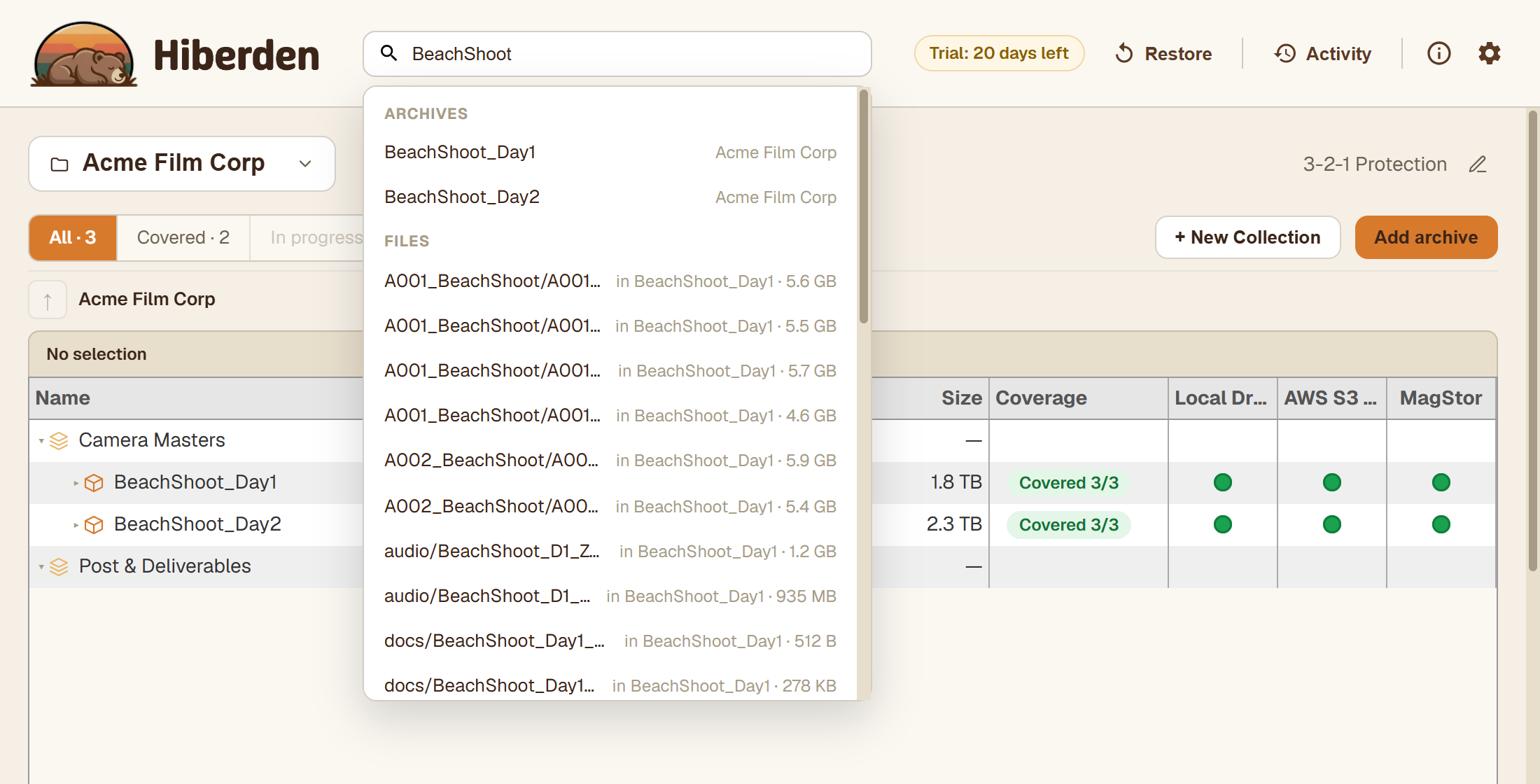
- Global search. The search box in the header finds files across every archive and every copy in your catalog. Type part of a name and pick the file from the results.
- Browse the archive. Open an archive and browse its file list directly.
Either way, the file list comes straight from the catalog. It opens instantly, even for an archive whose only copy is in the cloud: no TAR is read and no network request is made just to list files.
How a single-file restore works
When an archive is written, the catalog records where each file sits inside the TAR (its byte offset and size) along with that file's own SHA-256 hash. A single-file restore uses those records:
- Hiberden reads exactly the bytes for the file you picked: a seek-and-read on disk or NAS, or a ranged GET on cloud storage. It does not download or unpack the rest of the archive.
- The restored bytes are re-hashed and compared against the file's recorded SHA-256. A mismatch is reported instead of handing you a bad file.
Like every restore, the result goes into a new folder, so nothing existing is overwritten. And like every restore, it works with or without a license.
What it needs
- A Verified disk, NAS, or cloud copy. Only archives with at least one Verified copy are offered for restore, and single-file restore reads from disk, NAS, and cloud sources.
- Per-file records in the catalog. All recent archives record per-file offsets and hashes. Very old archives may not; for those, Choose files reads the whole archive and writes out only what you ticked, and an archive with no file list at all can only be restored whole.
From tape
Tape cannot jump to one file by byte range, so a tape copy takes a different route. Pick the tape copy in the restore dialog, choose Choose files and tick the file: Hiberden reads the whole archive from the cartridge, checks its SHA-256, and writes out only what you ticked. It takes as long as reading the whole archive, but you do not have to dig the file out yourself. See Restoring an archive.