
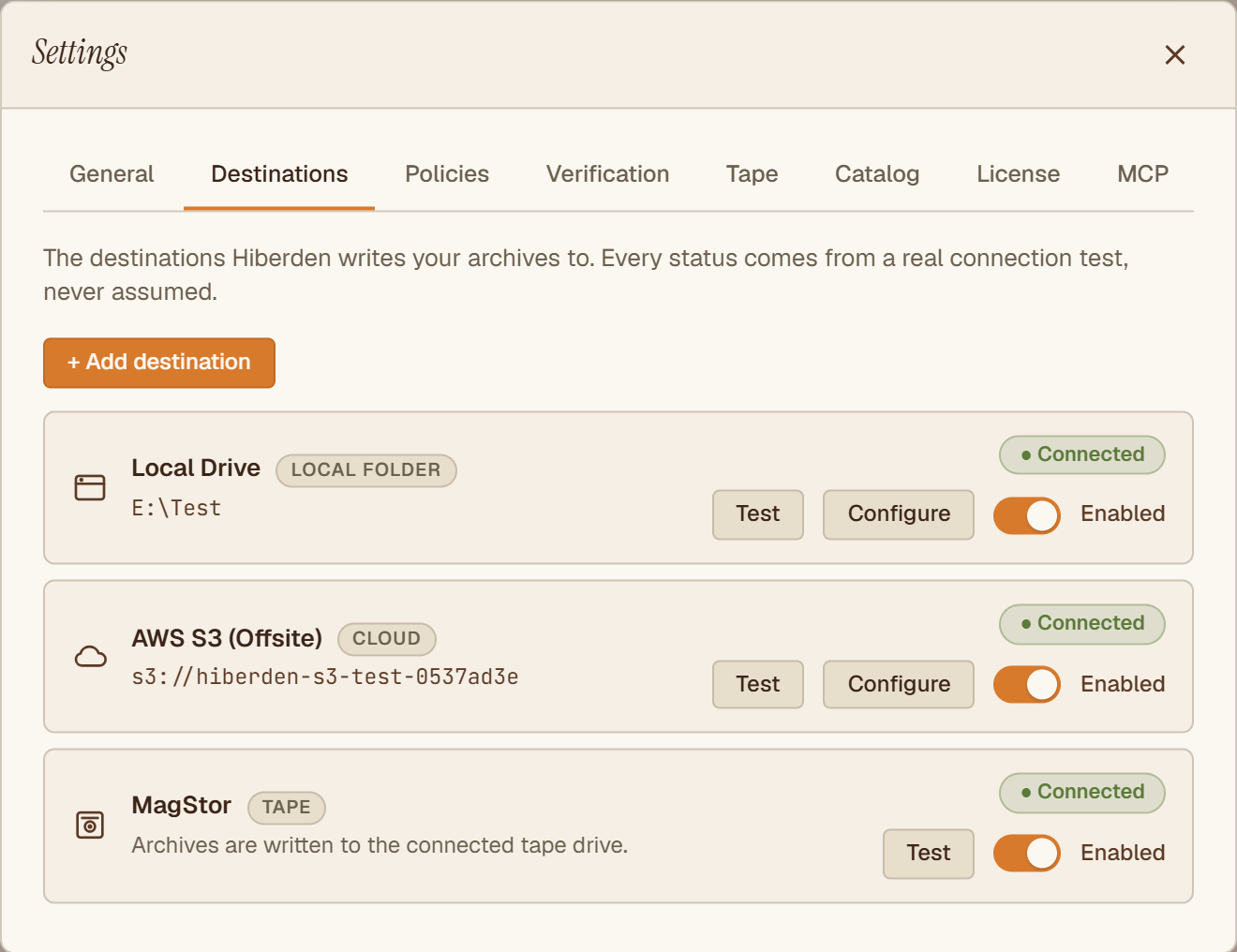
When a cloud destination stops working, you usually see it in one of two places: the destination's Save & test shows "● Connection failed", or an archive job fails while writing the cloud copy. Almost every case comes down to one of four things: the keys, the permissions, the endpoint or region, or the bucket name. Work through them in that order.
To make any of these fixes, open the destination from your Destinations list and edit its settings. Cloud (S3-Compatible) explains each field in detail.
1. Wrong or rotated keys
Your access key and secret key are stored in the OS keyring, never in the catalog. When you reopen a saved cloud destination, both key fields are blank, and the help text under the Access key field says "Leave blank to keep the existing key". That is normal: the saved keys are still there, they just are not displayed.
If the keys were rotated, revoked, or deleted at the provider, the saved copy in the keyring is now stale. Paste the new access key and secret key into the form (copy them straight from the provider's console to avoid typos), then run Save & test.
2. Missing permissions
Save & test runs a real probe: it checks the bucket with your saved keys (a HeadBucket call). That proves the keys work and the bucket is visible, but it does not exercise every permission an archive needs. So a destination can show "● Connected" and still fail later when Hiberden writes, reads back, or verifies a copy.
If the test passes but uploads fail, the key's IAM policy is the likely gap. S3 minimal permissions lists the exact policy Hiberden needs.
One permission worth calling out: s3:ListBucketMultipartUploads. Uploads of 16 MiB and up use resumable multipart, and on startup Hiberden aborts unfinished multipart uploads it is not tracking, so crashes do not leave billable invisible parts behind; an upload it can resume waits in Activity as Interrupted or Paused until you press Resume or Discard. That cleanup needs the list-multipart permission, so include it even if everyday uploads seem to work without it.
3. Wrong endpoint or region
The Endpoint field's own help text is the rule: "Leave blank for AWS S3. For B2, Wasabi, or R2, paste the provider's S3 endpoint." The two common mistakes are leaving Endpoint blank for a non-AWS provider, and pasting an endpoint that does not match the bucket's region. Check the Region field against where the bucket actually lives in the provider's console.
4. Bucket name typo
The bucket check fails if the name is misspelled or the bucket belongs to a different account than the keys do. Compare the Bucket field character by character against the provider's console.
After a fix at the provider, re-run the test
The "● Connected" or "● Connection failed" badge in your Destinations list is just the last test result. It stays as it is until you run another test or change the destination's settings, so after a provider-side fix you may still be looking at a stale failure badge. Hiberden does not cache your account's permission state behind that badge: re-running Save & test always probes the bucket as it is right now, never a remembered result. So once the provider has applied your fix, there is nothing to change in Hiberden; just run Save & test again.
Two caveats:
- If the fix was an IAM policy, remember what the test covers (section 2 above): it checks the bucket, not every permission an archive needs. The badge may well have been green before your fix too. The real confirmation of a permission fix is a successful upload, not the badge.
- If you issued new keys at the provider, the keyring still holds whatever you last saved, so you do need to paste the new pair into the form (step 1 above).
Still failing?
If Save & test still reports "● Connection failed" after these checks, export a support bundle and email it to support@hiberden.app. The bundle never includes your cloud credentials or destination configuration, so it is safe to send.