01 · Set it up once
Decide where every copy goes.
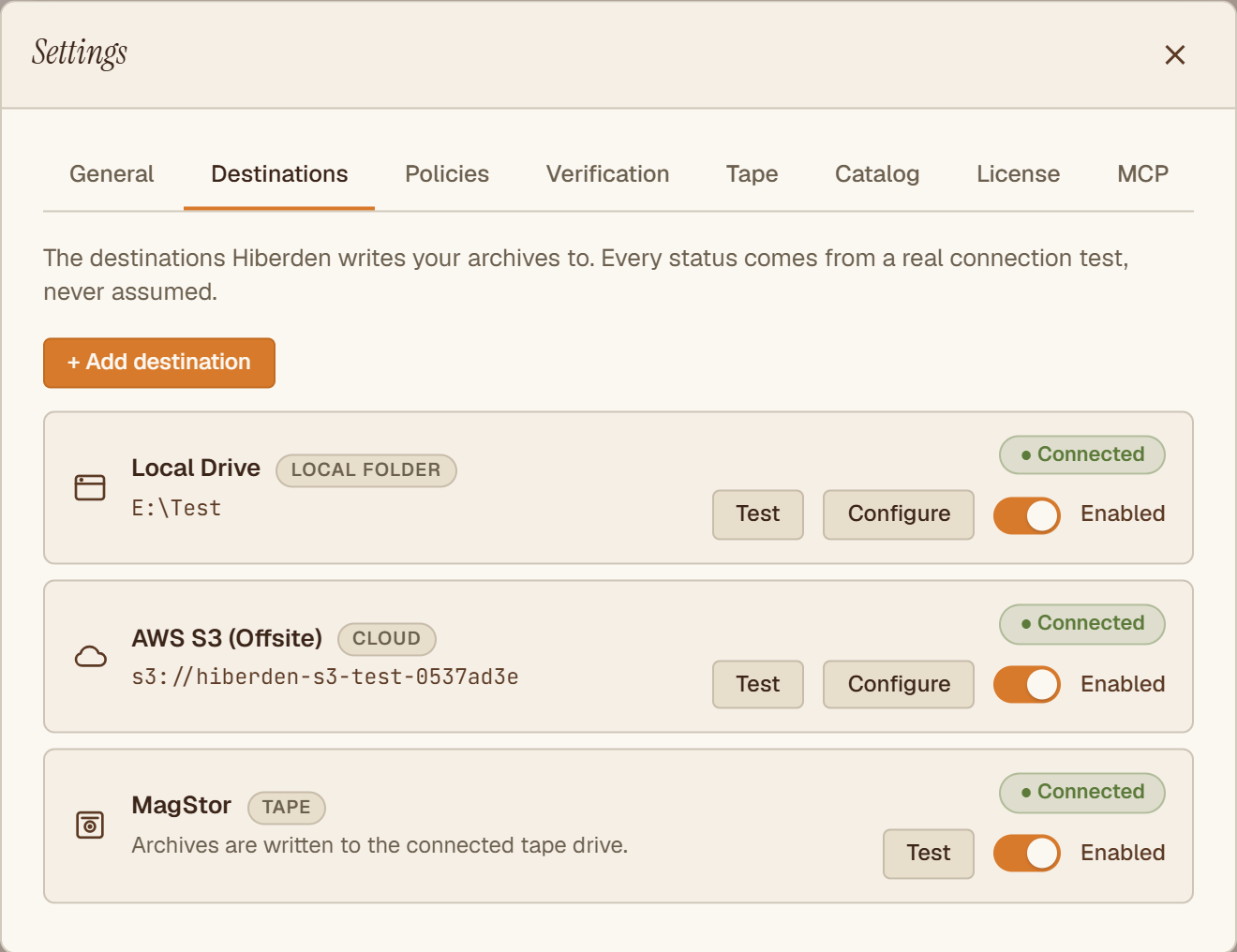
The first afternoon, you tell Hiberden where copies can live: a folder on a local drive, a share on your NAS, a bucket in your own S3-compatible account, or an LTO drive. No drive yet? The built-in virtual tape drive runs the whole tape workflow so you can try it first. Save & test writes a small marker file to a disk or share and reads it back, or checks a bucket with your keys, so a problem shows up now instead of during your first archive.
Then you give each project a policy: the list of places every archive in it must have a verified copy. Build it in the shape the 3-2-1 rule asks for (three copies, two kinds of media, one kept offsite), or start from one of the starter policies, and every archive in the project follows it from then on.
02 · Archive when it wraps
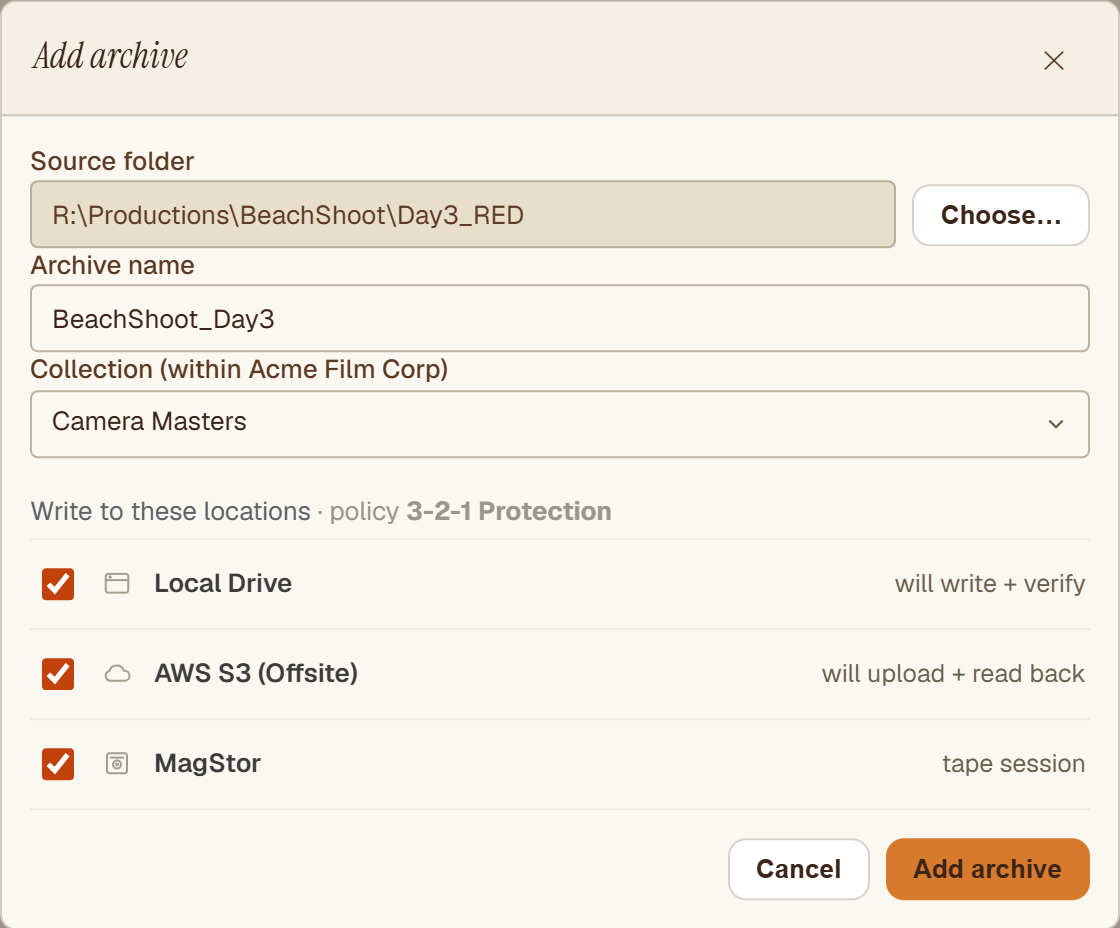
Archive the finished folder once.
When a job is done, you pick the finished folder and the project it belongs to. Hiberden seals the folder into one standard TAR, writes it to the disk, NAS and cloud destinations in the project's policy, and then writes the tape copy from a disk or NAS copy. The catalog records every file inside, with its size and SHA-256 fingerprint.
There is no second tool for the cloud and a third for tape, and no spreadsheet of which drive holds what. If the project has no policy yet, Add archive says so and offers a button that opens Policies.
03 · Check any morning
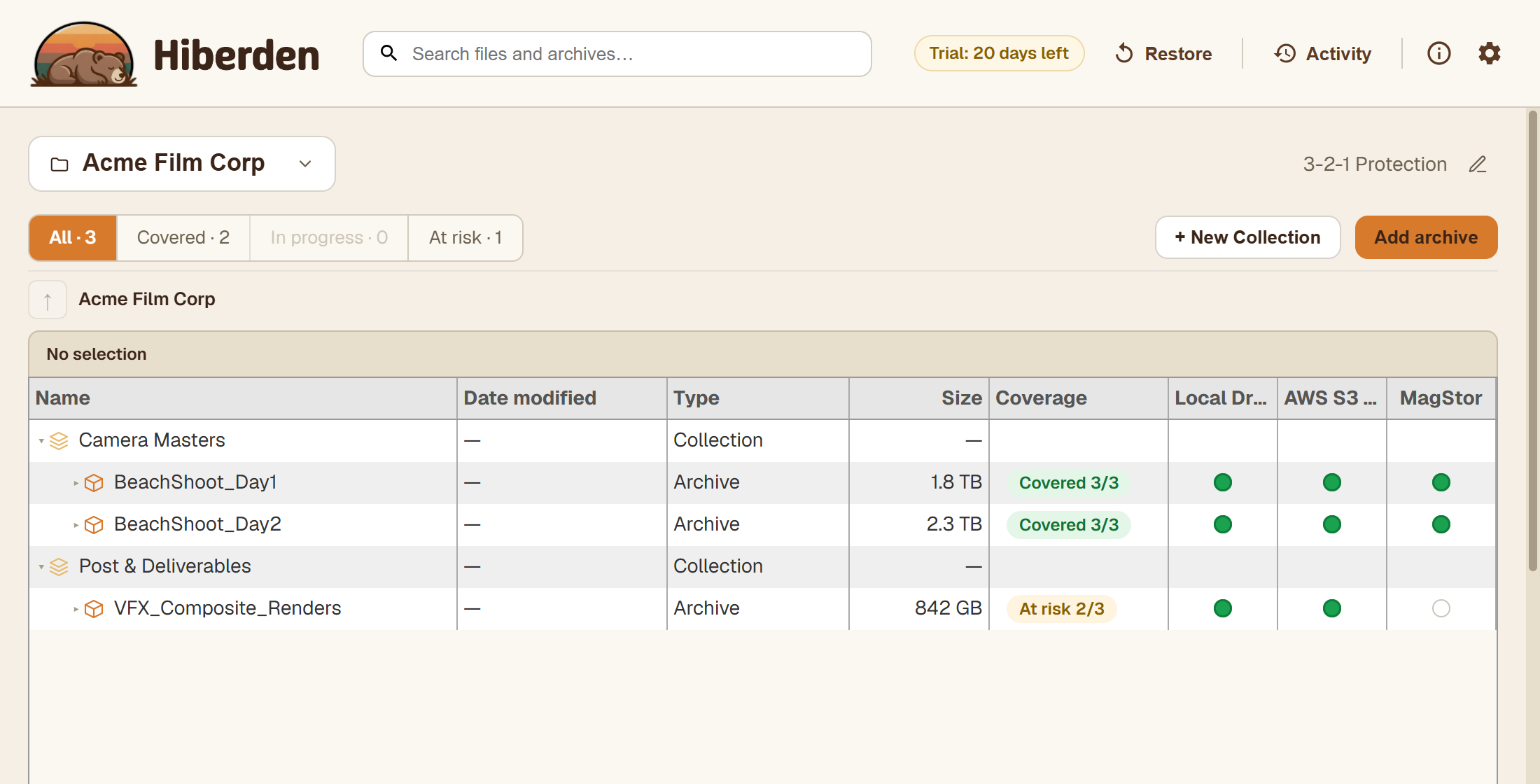
See what is covered at a glance.
A copy does not count until it is read back. After writing each one, Hiberden re-reads it, re-hashes it (SHA-256) and compares the result with the fingerprint recorded when it was written. A match marks the copy Verified and a mismatch marks it Failed, so a bad copy surfaces now, not years from now. The Archives view sorts everything into Covered, In progress, Needs attention and Needs setup.
Turn on the schedule once and Hiberden keeps re-reading your disk and NAS copies in the background, oldest first. If a drive is unplugged or a NAS is asleep, a check of its copies ends Not checked and leaves them as they were: a copy is never marked lost because its disk was away.
Covered 3/3
04 · Get a file back
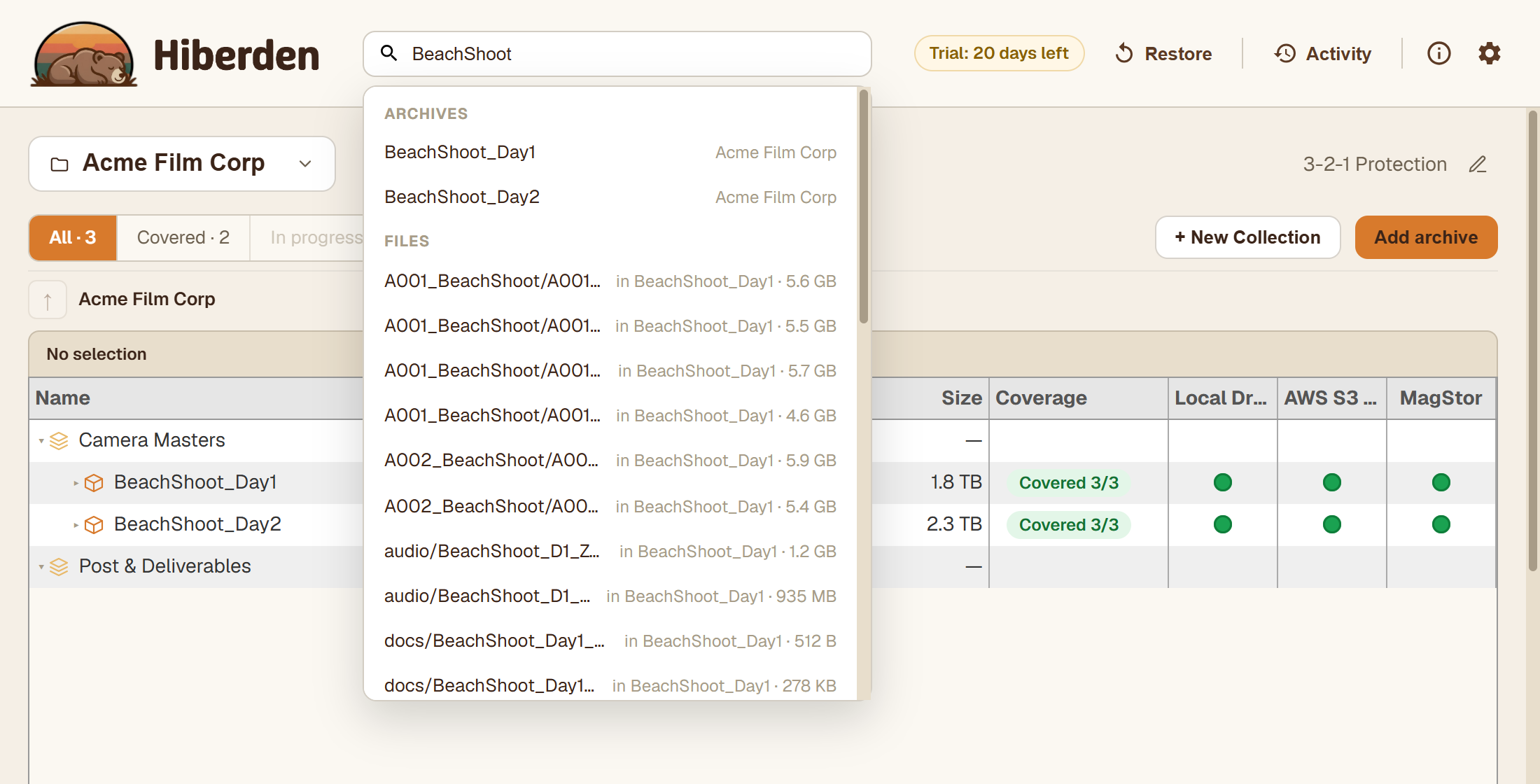
Find the file, restore it, move on.
Months or years later, someone asks for one shot, one dataset, one document. You search the catalog by name across every archive and every copy, see which copies hold it and whether each is verified, and restore the whole archive or only the files you need. When it finishes, Show in folder opens the result.
If the copy you picked sits on a disk that is not connected, the restore says so, and a whole-archive restore offers to retry or to use another copy. And because tapes are standard LTFS and disk and cloud copies are ordinary files, your data comes back with or without Hiberden.